ToolNaka · Live demo
Log in and run the whole flow yourself.
Five working demo accounts on the live site — factory, department head, plant head, seller and ToolNaka operations. Below is exactly what to click, and the verified trace of the same flow executed end-to-end on production.
Demo accounts
Go to toolsnaka.store → Sign in. All five use the same password.
Demo#ToolNaka26
| Role | What you can do / see | |
|---|---|---|
| Factory | demo.factory@toolnaka.demo | Browse the seller's catalog, place an order, choose who delivers, and raise an indent (a "photo request"). |
| Dept head | demo.depthead@toolnaka.demo | Approvals queue, scoped to the Maintenance department — first-level sign-off on the indent. |
| Plant head | demo.planthead@toolnaka.demo | Final approval on larger indents; can also clear a department-level item. |
| Seller | demo.vendor@toolnaka.demo | Catalog + stock, import a spreadsheet, quote the indent, raise a challan/invoice, chase payment, manage deliveries. |
| ToolNaka ops | demo.ops@toolnaka.demo | The Deliveries console: assign a rider and move a job through picked up → in transit → delivered. |
The 90-second walkthrough
- Factory — open Nearby Vendors: you'll see your PIN code and the seller's catalog. Add a couple of items and choose ToolNaka delivers at checkout. The page tells you the choice is locked to the order.
- Factory — open Photo Request, raise an indent with a value above ₹50,000 and department Maintenance. It sits as Waiting for approval — the seller cannot see it yet.
- Dept head — open Approvals: the indent is in the queue (scoped to Maintenance). Approve it. It moves up, it does not finish.
- Plant head — open Approvals: same item, now at the final step. Approve. It is released to sellers.
- Seller — open Part Requests: the indent is now visible. Send a quote (price + delivery days).
- Factory — back in Photo Request: accept the quote.
- Seller — open Deliveries: the ToolNaka order shows a green Delivered by ToolNaka badge and a lock notice. Try to change it — the site refuses, because the factory owns that choice.
- ToolNaka ops — open Deliveries, type a rider name and phone, press Assign, then Picked up → Delivered.
- Seller — open Inventory to import a stock sheet or paste a spreadsheet link, then Payment Reminders to send a reminder (it really emails the factory).
Verified on production — 23 of 23 steps
| # | Step | Observed |
|---|---|---|
| 1–5 | Five demo accounts created (factory, dept head, plant head, seller, ops); dept head scoped to Maintenance | done |
| 6 | Seller catalog live | 4 products with stock |
| 7 | Factory raises an indent | PR-2026-0001, status pending_approval |
| 8 | Approval routing | dept_manager, level 1 of 2 |
| 9 | Hidden from sellers before approval | correct — not in the seller feed |
| 10–11 | Dept head approves | advances to level 2 (plant head) |
| 12–13 | Plant head final approval | approved · indent released to sellers |
| 14–15 | Seller sees it and quotes | ₹6,400 · 2 days |
| 16 | Factory awards the quote | awarded to new item @ ₹6,400 |
| 17 | Factory places an order | TN-ORD-000001, delivery by toolsnaka |
| 18 | Delivery job auto-created | TN-DL-000001, requested, locked by factory |
| 19 | Seller tries to edit that delivery | 403 "This order is delivered by ToolNaka. The seller cannot change it." |
| 20 | Ops assigns a rider and completes | Ravi · 9876543210 → delivered |
| 21 | Seller raises a challan | TN-CH-000001 + invoice |
| 22 | Outstanding balance shown | 1 invoice · ₹2,183 |
| 23 | Payment reminder | sent=true — "Reminder emailed" |
The live site
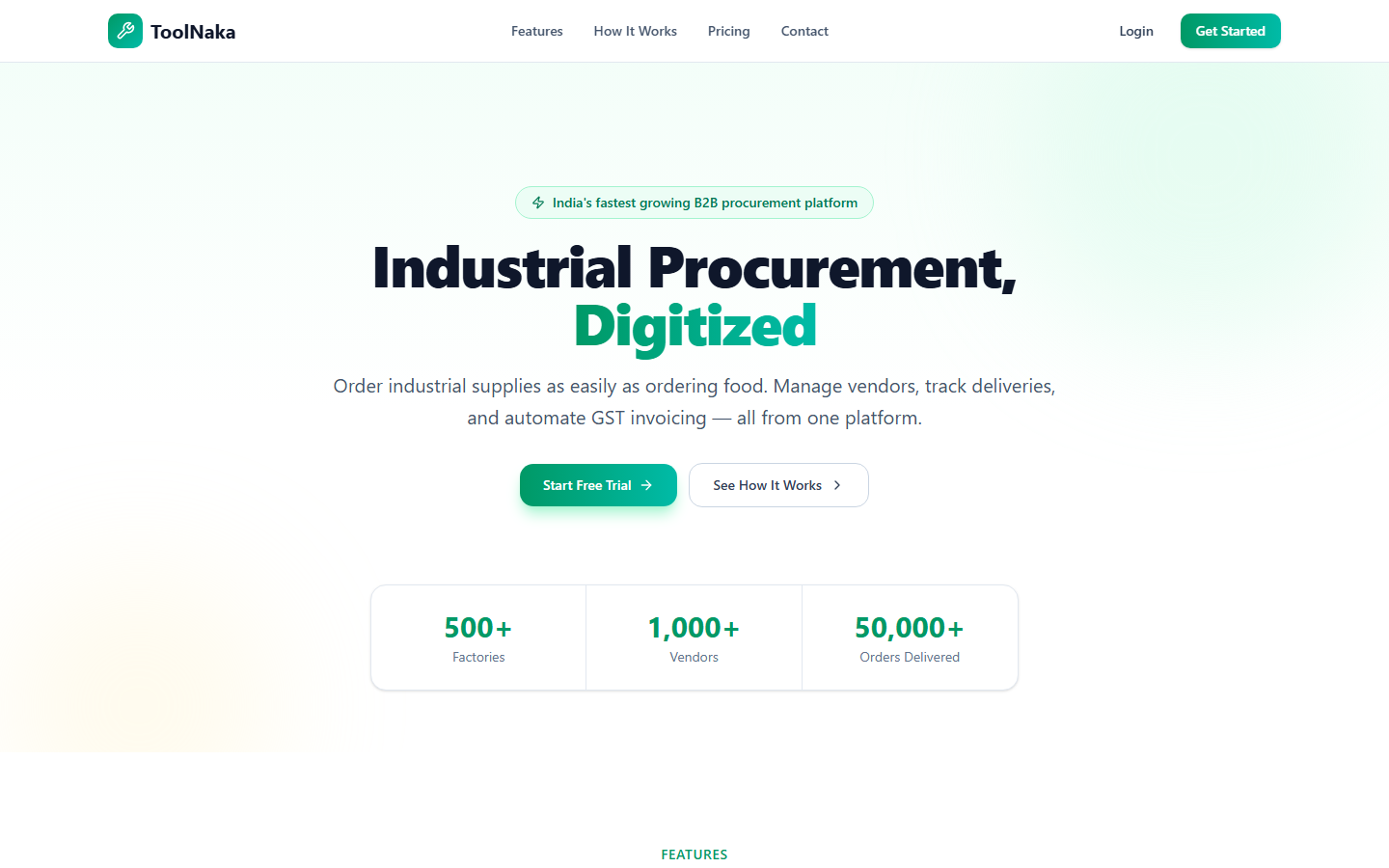
Landing page · desktop 1440×900 · toolsnaka.store
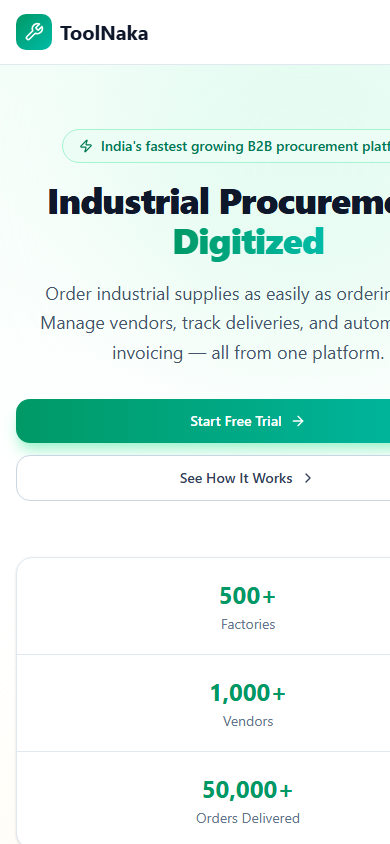
Landing page · mobile 390×844
Dashboard screens sit behind a login, so they are not in these shots — sign in with any account above to see them. (The in-app browser agent wasn't reachable this session, so the walkthrough above is the scripted path.)
Good to know
- These demo accounts are separate from your real accounts — they only see demo data, and the demo flow resets to a clean state each time it is re-seeded.
- The seller's catalog uses the approved B2B categories (e.g. Bearings & Transmission, not "Bearings"); anything outside the catalogue is refused at listing time.
- Orders and indents are gated server-side, not just in the interface: the delivery lock returns a real
403, and an unapproved indent never reaches the seller feed. - Reminder emails send from your Gmail SMTP account — that is why step 23 reports a genuine delivery.